Tech Safety: 15 Essential Ways to Protect Your Devices, Data, and Privacy
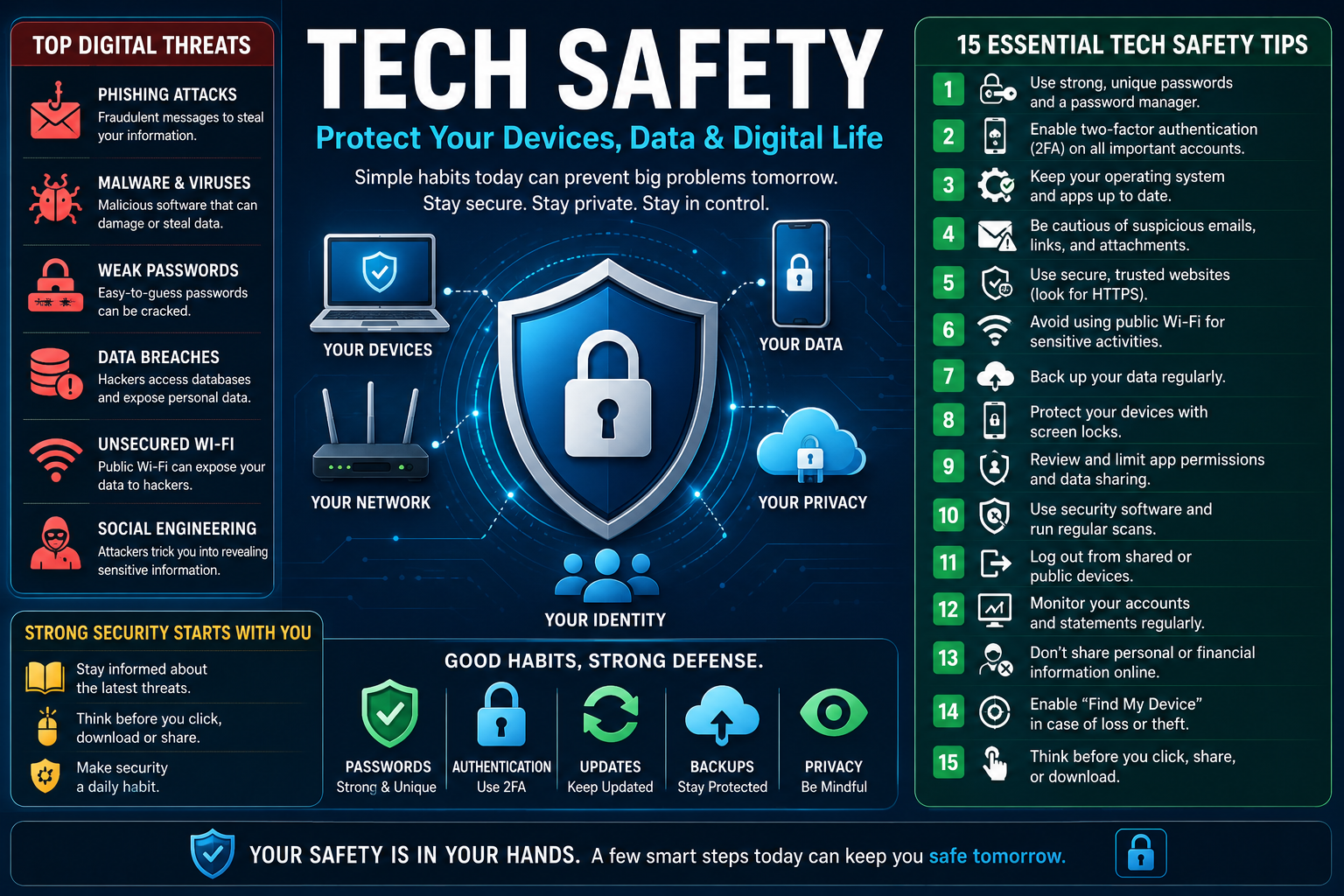
Technology makes everyday life faster, easier, and more connected. We use smartphones to manage finances, laptops to work, smart TVs to entertain ourselves, cloud platforms to store documents, and connected devices to control homes, vehicles, and businesses. But every connected device also creates another place where something can go wrong. Tech safety is the practice of protecting your devices, accounts, personal information, privacy, and digital identity from cyber threats, accidents, misuse, and avoidable security risks. The strongest approach combines secure passwords, multi-factor authentication, software updates, safe browsing habits, privacy controls, backups, and careful use of connected technology AI TechRepublic
What Is Tech Safety?
Tech safety is a broad term covering the secure and responsible use of digital technology. It includes cybersecurity, privacy protection, device security, account protection, safe internet behavior, data management, and protection against scams.
The concept applies to almost everyone. A student using a smartphone, a parent managing family accounts, a traveler connecting to hotel Wi-Fi, a freelancer working from a laptop, and a company managing customer information all face different technology risks.
Good tech safety does not require becoming a cybersecurity professional. Instead, it means understanding the most important risks and putting sensible defenses in place.
Tech Safety vs. Cybersecurity
Cybersecurity generally focuses on protecting systems, networks, applications, and information from malicious attacks. Tech safety is broader because it also includes everyday mistakes and physical risks.
For example, cybersecurity may address malware, ransomware, phishing, and unauthorized access. Tech safety also considers what happens if someone leaves a laptop in a taxi, shares a password with another person, installs a suspicious application, or fails to back up important photographs.
The two areas overlap heavily, but tech safety takes a more practical, user-centered approach.
Why Tech Safety Matters to Everyone
You do not need to be famous, wealthy, or a technology expert to become a target.
Attackers often look for opportunities rather than specific individuals. Automated systems can scan millions of accounts, devices, websites, and exposed services. Weak passwords, outdated software, stolen credentials, and social engineering can create opportunities regardless of someone’s technical knowledge.
Personal information can also have value even when it does not seem important individually. Email addresses, phone numbers, usernames, browsing information, location data, photographs, employment details, and account credentials can be combined to create convincing scams or support identity theft.
Why Modern Technology Creates New Safety Challenges
Technology has become more powerful because devices and services are increasingly interconnected. That convenience also creates dependencies.
A smartphone may control email, banking, authentication, navigation, communication, entertainment, and smart-home devices. If the phone is compromised, several parts of a person’s digital life can potentially be affected at once.
The Connected Account Problem
One compromised account can sometimes lead to another.
Consider an email account. It may appear to be only a communication tool, but it is frequently used for password resets and security notifications. If someone gains access to the email account, they may attempt to reset passwords for other services.
This creates a chain of trust.
Protecting the most important accounts, especially primary email, financial accounts, password managers, and cloud storage, should therefore be a priority.
The Convenience and Security Trade-Off
Technology companies design products to be convenient. Security controls can sometimes add additional steps.
A person may prefer a simple password because it is easy to remember. A secure system may require a long unique password and multi-factor authentication.
The solution is not to reject convenience. Instead, use technologies that provide security without creating unnecessary friction.
Password managers, biometric authentication, automatic updates, passkeys, encrypted backups, and device security features can make strong protection easier rather than harder.
The Most Important Areas of Tech Safety
A strong tech safety strategy can be divided into several connected layers.
Device Security
Your smartphone, tablet, computer, smartwatch, and other connected devices should be protected with screen locks, supported operating systems, security updates, and appropriate application permissions.
Use a strong device passcode rather than an easily guessed number. Enable biometric authentication where appropriate, but keep a secure backup passcode.
Do not leave sensitive devices unlocked in public places.
Account Security
Every important online account should have a unique password or passkey.
Reusing one password across multiple websites creates a major weakness. If one service suffers a credential leak, attackers may try the same email and password combination elsewhere.
A password manager can generate and store unique credentials so you do not have to memorize every password.
Multi-Factor Authentication
Multi-factor authentication, commonly called MFA or 2FA, adds another verification layer beyond the password.
Depending on the service, this may involve an authentication application, security key, passkey, biometric verification, or another trusted method.
MFA is particularly valuable for email, financial services, cloud storage, social media, and administrator accounts.
Privacy Protection
Privacy is different from security, although they are closely related.
Security asks whether unauthorized people can access information. Privacy asks how information is collected, used, shared, stored, and exposed.
Review application permissions regularly. An application may not need access to contacts, microphones, cameras, precise location, or photographs to provide its core function.
Data Backup
Security cannot eliminate every risk.
A device can fail. A file can be accidentally deleted. An account can become inaccessible. Ransomware can encrypt local files.
Reliable backups provide another layer of protection.
Important information should ideally exist in more than one location, with at least one backup protected from problems affecting the primary device.
How to Create Strong Password Security
Passwords remain an important part of digital security, although newer technologies such as passkeys are increasingly changing how authentication works.
Use Unique Credentials
The most important password rule is simple: do not reuse important passwords.
Your email password should not also be your banking password. Your social media password should not be the same as your shopping account password.
A breach at one company should not automatically give an attacker access to your other accounts.
Make Passwords Difficult to Guess
Long passwords or passphrases are generally preferable to short, predictable combinations.
Avoid using easily discoverable information such as:
- Your name
- Birthday
- Phone number
- Family names
- Pet names
- Company name
- Common phrases
- Simple number sequences
- Repeated passwords
A password manager can generate random credentials that are difficult for attackers to guess.
Consider Passkeys
Passkeys are designed to provide passwordless authentication using cryptographic credentials associated with a device or credential manager.
Instead of remembering a conventional password, the user typically confirms identity through a device-level security mechanism such as biometrics, a PIN, or another authentication method.
Passkeys can reduce exposure to certain password-based attacks, particularly phishing, because the authentication mechanism is tied to the legitimate website or service.
How to Protect Your Smartphone
A smartphone is effectively a small computer that you carry everywhere.
It can contain photographs, messages, authentication credentials, financial applications, work documents, contacts, and location information.
Use a Strong Screen Lock
Set a strong PIN or passcode and enable biometric authentication when suitable.
Avoid obvious patterns or numbers that someone could easily guess.
If your device supports automatic locking, use a short enough timeout to reduce exposure when the phone is left unattended.
Keep the Operating System Updated
Operating system updates can include security patches, bug fixes, and improvements.
Delaying important updates for long periods can leave known vulnerabilities unaddressed.
Enable automatic updates where practical, particularly for security-sensitive devices.
Install Apps Carefully
Use official app stores and verify the application developer before installation.
Be suspicious of applications that request permissions unrelated to their purpose.
A basic utility does not necessarily need access to your microphone, contacts, messages, camera, and precise location.
Prepare for Loss or Theft
Enable the device’s built-in location and remote-management features before the device disappears.
Make sure your important data is backed up.
The goal is to make a lost phone inconvenient rather than catastrophic.
How to Protect Your Computer
Computers remain essential for work, education, business, creativity, and communication.
Keep Software Updated
Operating systems, browsers, productivity applications, and security tools should be updated regularly.
Old software can contain vulnerabilities that attackers know how to exploit.
Use Security Software
Modern operating systems include built-in security protections, but additional security software may provide useful features depending on the user’s needs.
For many people, the most important protection is not the brand of antivirus software but whether the device is updated, securely configured, and used carefully.
Lock Your Computer
Always lock your computer when stepping away.
This is particularly important in offices, universities, hotels, airports, coworking spaces, and shared environments.
Physical access can sometimes bypass protections that are effective against remote attacks.
Safe Browsing Habits
The web is one of the most useful technologies ever developed, but not every website or message deserves trust.
Check Website Addresses
Before entering sensitive information, verify that you are on the correct website.
Attackers can create pages that visually resemble legitimate services.
Do not rely solely on a familiar logo or page design.
Be Careful With Urgent Messages
Scams frequently create urgency.
Messages may claim:
- Your account will be closed
- A payment failed
- Your package is waiting
- Your bank requires verification
- Your password has expired
- You have won a prize
- Someone needs immediate help
- A security problem requires immediate action
Urgency is not proof of fraud, but it is a reason to slow down.
Do Not Click Automatically
Instead of clicking a link in a suspicious email or message, open the official application or manually navigate to the known website.
This reduces the risk of being redirected to a fraudulent page.
Phishing and Social Engineering
One of the biggest mistakes in tech safety is focusing only on technical attacks.
Human behavior is often targeted directly.
What Is Phishing?
Phishing is an attempt to trick someone into revealing information, clicking a malicious link, downloading harmful content, or transferring money.
It can happen through email, messaging applications, social media, websites, phone calls, and even physical interactions.
Why Phishing Works
Effective phishing messages often imitate situations people already recognize.
An attacker may pretend to be a bank, employer, delivery company, friend, family member, government agency, or technology provider.
The goal is to make the request feel normal enough that the victim acts before thinking.
The Pause-and-Verify Method
A useful safety habit is to pause before responding to unusual requests.
Ask:
- Was I expecting this message?
- Is the request unusually urgent?
- Is money or sensitive information involved?
- Can I verify the sender independently?
- Does the request make sense in context?
- Can I contact the organization through a trusted channel?
A few seconds of verification can prevent serious mistakes.
Tech Safety for Email
Email is often the center of a person’s digital identity.
Protect Your Primary Email
Use a strong unique password or passkey.
Enable MFA.
Review recovery email addresses and phone numbers.
Check active sessions and connected applications periodically.
Protect Email Recovery Options
Recovery information should be accurate and secure.
If an old phone number or unused email address remains connected to an account, update it.
Account recovery mechanisms are effectively part of your security perimeter.
Tech Safety for Social Media
Social networks combine communication, identity, photographs, location information, and personal history.
Review Public Information
Avoid unnecessarily publishing details that can help strangers construct a profile of you.
Think carefully before publicly sharing:
- Home information
- Travel dates
- Daily routines
- Workplace details
- Children’s school information
- Financial information
- Personal documents
- Identification numbers
Be Careful With Direct Messages
A profile picture and familiar name do not prove identity.
If a friend suddenly asks for money or sensitive information, verify the request using another communication method.
Account takeovers can make fraudulent messages appear to come from real friends.
Tech Safety for Online Shopping
Online shopping is convenient, but consumers should protect both payment information and account credentials.
Use Trusted Services
Before purchasing, check the website address, seller information, payment process, return policy, and contact details.
Avoid rushing because of artificial scarcity or aggressive countdown timers.
Protect Shopping Accounts
Use unique passwords and MFA where available.
Do not store payment information on unfamiliar websites unless you have evaluated the service and understand its security practices.
Monitor Financial Activity
Review bank and payment-account activity regularly.
Early detection can make unauthorized transactions easier to address.
Tech Safety for Banking and Financial Accounts
Financial accounts deserve some of the strongest protection available.
Enable Strong Authentication
Use MFA, passkeys, hardware security keys, or other strong authentication options offered by your financial provider.
Avoid Banking on Untrusted Devices
Do not use unfamiliar computers for sensitive financial activity when you can avoid it.
If you must access an account while traveling, use a trusted personal device and verify the connection and website carefully.
Treat Unexpected Financial Messages as Suspicious
If you receive a message claiming that your account has a problem, do not automatically follow its link.
Open your bank’s official application or use a known contact method.
Public Wi-Fi and Travel Tech Safety
Travel introduces additional technology risks because people connect from unfamiliar environments.
Hotels, airports, cafés, conference centers, and public transportation can all create situations where users are outside their normal security environment.
Avoid Sensitive Activity on Untrusted Devices
Never assume a public computer is safe for sensitive tasks.
Avoid logging into highly sensitive accounts on shared computers.
Use Your Own Devices
Your personal smartphone or laptop gives you greater control over updates, security settings, applications, and stored credentials.
Consider a VPN Carefully
A reputable VPN can encrypt network traffic between your device and the VPN service, which can be useful in some situations.
However, a VPN is not a complete security solution.
It does not automatically protect you from phishing, malicious downloads, compromised accounts, weak passwords, or scams.
Tech Safety for Families
Children and teenagers interact with technology differently from adults, so family tech safety should focus on education rather than fear.
Teach Children How to Recognize Risk
Explain why strangers online may not be who they claim to be.
Teach children not to share passwords, personal information, private photographs, or location details without appropriate guidance.
Use Age-Appropriate Controls
Parental controls can help manage content, applications, purchases, screen time, and communication depending on the platform.
Technology controls work best when combined with clear family rules and open communication.
Tech Safety for Older Adults
Older adults may face different digital risks, particularly impersonation scams and financial fraud.
Explain Common Scam Patterns
Teach family members to be cautious when someone unexpectedly asks for money, gift cards, passwords, verification codes, or remote computer access.
Encourage Verification
A simple rule can help: unexpected financial or account-security requests should be independently verified.
Do not call a phone number supplied by a suspicious message. Use a trusted number from an official statement, application, or known website.
Smart Home Tech Safety
Connected doorbells, cameras, speakers, thermostats, televisions, locks, and appliances can improve convenience.
They also create additional connected endpoints.
Change Default Credentials
If a device ships with a default password, change it according to the manufacturer’s instructions.
Update Smart Devices
Firmware updates can address security problems.
Choose manufacturers that provide reasonable software support and clearly communicate updates.
Secure Your Home Network
Use modern Wi-Fi security and a strong wireless-network password.
Separate sensitive devices from guest devices when your router supports network segmentation or guest networking.
AI and Tech Safety
Artificial intelligence introduces new opportunities as well as new safety concerns.
AI systems can help users summarize information, write content, analyze data, automate workflows, and interact with software. At the same time, AI can make certain scams more convincing.
AI-Enhanced Phishing
Attackers can use automated tools to create convincing messages with better grammar and personalization.
This means spelling mistakes are no longer a reliable indicator of fraud.
The safest approach is to evaluate the request itself rather than judging only the writing quality.
Deepfakes and Synthetic Media
Images, audio, and video can be manipulated or generated.
If someone appears to send an urgent financial request through an unusual channel, verify it independently.
Do not assume that seeing or hearing someone is sufficient proof of identity.
Protect Sensitive Information When Using AI Tools
Before entering information into an AI service, consider whether the information is confidential, private, regulated, proprietary, or otherwise sensitive.
Understand the service’s data-handling controls and use organizational policies where applicable.
Tech Safety and Privacy
Security protects access. Privacy protects appropriate use and exposure.
Both matter.
Minimize Data Collection
If a service does not need certain information, consider whether it is necessary to provide it.
Avoid creating unnecessary accounts.
Review App Permissions
Check permissions periodically.
If an application has access that it no longer needs, remove that permission where possible.
Be Careful With Location Data
Location information can reveal routines, workplaces, homes, travel patterns, and other sensitive details.
Use location permissions selectively.
Backups: The Safety Net Most People Ignore
A backup is one of the simplest ways to reduce the impact of data loss.
What Should Be Backed Up?
Consider backing up:
- Family photographs
- Important documents
- Work files
- Financial records
- Contact information
- Creative projects
- Educational materials
- Device configurations
- Other irreplaceable information
Use More Than One Copy
A single backup is not necessarily enough.
A safer strategy involves multiple copies stored in different places, ideally with at least one copy protected against problems affecting the main device.
Test Your Backups
A backup that cannot be restored is not useful.
Periodically confirm that important files can actually be recovered.
Common Tech Safety Mistakes
Even security-conscious people make mistakes.
Using One Password Everywhere
This creates a single point of failure.
The solution is to use unique credentials and a password manager or passkey system where appropriate.
Ignoring Software Updates
People sometimes postpone updates because they are inconvenient.
The solution is to enable automatic updates whenever practical.
Trusting Familiar Branding
A scam can imitate the appearance of a legitimate company.
Always verify the actual sender, domain, and request.
Sharing Verification Codes
A legitimate service may use verification codes to prove that you control an account. If someone unexpectedly asks you to send them a code, treat that request as highly suspicious.
Installing Too Many Security Apps
More security software does not always mean more security.
Multiple overlapping applications can cause conflicts, unnecessary notifications, reduced performance, or false confidence.
Focus on strong fundamentals first.
A Practical Tech Safety Checklist
A strong digital-security routine does not have to be complicated.
Daily Habits
- Pause before responding to unexpected requests.
- Avoid clicking suspicious links.
- Lock your devices when leaving them unattended.
- Do not share authentication codes.
- Verify unusual financial requests.
Weekly Habits
- Review important account activity.
- Check for unusual login notifications.
- Confirm important files are being backed up.
- Remove applications you no longer use.
Monthly Habits
- Review account recovery information.
- Review application permissions.
- Check connected devices and active sessions.
- Update security settings where necessary.
- Review privacy settings on major platforms.
Occasional Security Review
Every few months, consider whether your digital life has changed.
Have you opened new financial accounts? Started a new job? Bought a smart device? Changed your phone number? Created new cloud accounts?
Security should evolve with your technology use.
How to Respond After a Security Incident
No security strategy is perfect.
If you suspect an account or device has been compromised, act quickly.
Secure the Affected Account
Change the password from a trusted device if appropriate.
If the same password was reused elsewhere, change those accounts too.
Enable MFA or passkey authentication.
End Suspicious Sessions
Review active sessions and connected devices.
Sign out unfamiliar devices where the service allows it.
Contact Financial Providers Quickly
If financial information may have been exposed, contact the relevant bank, payment provider, or card issuer through official channels.
Preserve Evidence
Keep suspicious messages, emails, transaction records, screenshots, and other relevant information.
These records can help when reporting an incident.
Tech Safety for Small Businesses
Businesses face additional responsibilities because a single compromised account can affect customers, employees, finances, and operations.
Separate Personal and Business Accounts
Use dedicated business accounts and appropriate administrative controls.
Apply Least Privilege
Users should generally receive only the access they need to perform their responsibilities.
This limits the potential impact of compromised accounts.
Train Employees
Security awareness should cover phishing, password security, MFA, data handling, device security, and incident reporting.
Maintain an Incident Response Plan
A business should know who to contact if an account is compromised, a device is lost, customer information is exposed, or ransomware affects systems.
Pros and Cons of Strong Tech Safety
Tech safety provides major benefits, but security controls can create some friction.
| Aspect | Benefits | Potential Drawback |
|---|---|---|
| Strong passwords | Reduces credential reuse | Difficult to memorize without a manager |
| MFA | Adds an important security layer | Adds an authentication step |
| Password managers | Simplifies unique passwords | Requires securing the manager account |
| Automatic updates | Reduces exposure to known vulnerabilities | Updates may occasionally cause compatibility issues |
| Backups | Helps recover lost or damaged data | Requires storage and maintenance |
| Privacy controls | Reduces unnecessary data exposure | May limit some personalized features |
| VPNs | Can improve privacy on certain networks | Does not prevent all cyber threats |
| Security software | Can detect malicious activity | May use system resources |
| Smart-home devices | Convenient automation | Adds connected security exposure |
| AI tools | Improve productivity | Require careful handling of sensitive information |
The goal is not maximum security at any cost. The goal is appropriate security for the risk.
Ten Leading Tech Safety and Security Brands Compared
The following comparison focuses on well-known technology and cybersecurity brands that offer products or services relevant to different parts of digital safety. They are not identical products, so the table should be viewed as a category comparison rather than a ranking.
| Brand | Main Strength | Common Use | Best For | Key Consideration |
|---|---|---|---|---|
| Microsoft | Built-in security ecosystem | Windows, identity, cloud security | Windows users and organizations | Many advanced features depend on the Microsoft ecosystem |
| Account and identity security | Google accounts, Android, cloud services | Users invested in Google services | Security settings should be reviewed across connected services | |
| Apple | Device and platform security | iPhone, iPad, Mac | Apple ecosystem users | Strongest experience is generally within Apple’s ecosystem |
| Bitdefender | Consumer cybersecurity | Malware and endpoint protection | Home users seeking security software | Product features vary by plan |
| Norton | Consumer digital security | Antivirus, identity and security tools | Families and individual users | Subscription features differ by package |
| McAfee | Broad consumer protection | Device and identity security | Multi-device households | Compare included features before subscribing |
| ESET | Endpoint protection | Malware and device security | Users wanting security-focused tools | Interface and features vary across products |
| Malwarebytes | Malware protection | Threat detection and remediation | Users seeking focused malware protection | It is not a replacement for every security layer |
| Avast | Consumer security | Device and online protection | General users | Review privacy and product settings carefully |
| 1Password | Password management | Credential storage and generation | Individuals, families, and teams | The security of the account itself remains critical |
No single brand can make someone completely safe online. Strong tech safety comes from combining secure behavior, protected accounts, updated devices, privacy awareness, backups, and appropriate security tools.
Tech Safety for Different Types of Users
Security requirements change depending on the person.
Tech Safety for Students
Students should prioritize account security, device protection, safe downloads, backups, and privacy.
School accounts often provide access to email, documents, educational systems, and personal information. A compromised account can therefore disrupt both academic work and personal communication.
Tech Safety for Remote Workers
Remote workers should pay particular attention to home Wi-Fi, work-device security, phishing, cloud accounts, and separation between personal and professional information.
Tech Safety for Travelers
Travelers should prepare devices before departure, maintain backups, avoid unnecessary sensitive activity on shared devices, and verify unexpected messages.
Travel can also increase the consequences of losing a phone because authentication and communication may depend heavily on that device.
Tech Safety for Families
Families should establish simple rules around passwords, online communication, purchases, privacy, and suspicious messages.
The goal should be confidence and awareness rather than fear.
Tech Safety for Professionals
Professionals handling confidential information should follow organizational security policies and use approved tools.
Sensitive work information should not be copied into personal services simply because they are convenient.
Building a Personal Tech Safety Framework
A useful way to think about security is to divide your digital life into five layers.
Layer One: Identity
Protect your most important accounts with unique credentials, MFA, passkeys, recovery controls, and careful account monitoring.
Layer Two: Devices
Keep devices updated, locked, encrypted where appropriate, and physically protected.
Layer Three: Data
Know where important information is stored and maintain reliable backups.
Layer Four: Networks
Use secure home networks and be cautious with unfamiliar connections.
Layer Five: Behavior
Learn to recognize phishing, social engineering, suspicious downloads, fake websites, impersonation, and unusual requests.
This five-layer approach is useful because it avoids the mistake of treating antivirus software as the entire security strategy.
The Human Factor in Tech Safety
Technology can provide excellent security controls, but users still make decisions.
A technically secure account can be compromised if the owner voluntarily gives an attacker the password.
A secure smartphone can be exposed if it is left unlocked.
A well-designed email system cannot prevent every fraudulent message from convincing someone to transfer money.
This is why security awareness matters.
The most valuable skill is not memorizing every type of cyberattack. It is developing a habit of stopping when something feels unusual.
Why Simplicity Is Important in Security
Complex security systems can fail when users cannot understand or maintain them.
A simple system that a person consistently follows is often more effective than an elaborate system that is ignored.
For example, a practical security routine might include:
- A password manager
- Unique credentials
- MFA or passkeys
- Automatic software updates
- Screen locks
- Regular backups
- Privacy reviews
- Scam awareness
These habits cover a large portion of everyday technology risk without requiring advanced technical knowledge.
The Future of Tech Safety
Technology safety will continue to change as digital systems become more connected.
Passkeys and Passwordless Authentication
Passwordless authentication is likely to become increasingly important as platforms adopt credentials designed to resist certain forms of phishing.
AI-Powered Security
AI can help identify unusual activity, analyze threats, detect suspicious behavior, and automate security responses.
However, the same technology can also be used by attackers.
The future security environment will therefore involve AI systems defending against increasingly sophisticated automated attacks.
Connected Devices
Smart homes, connected vehicles, wearable devices, industrial systems, and other Internet of Things technologies will create new security considerations.
Manufacturers will need to think about long-term software support, secure defaults, update mechanisms, privacy, and device lifecycle management.
Digital Identity
As more services move online, proving who you are securely will become increasingly important.
Biometrics, passkeys, digital credentials, and identity platforms may become more common.
Privacy by Design
Consumers are becoming more aware of how much information modern technology collects.
Future products will increasingly need to consider privacy during design rather than treating it as an optional setting added later.
A Simple 10-Step Tech Safety Plan
If you want to improve your digital security without becoming overwhelmed, start with these steps.
Step One: Secure Your Primary Email tech safety
Use a unique strong credential and MFA or a passkey.
Step Two: Protect Financial Accounts tech safety
Use the strongest authentication options offered by your financial providers and monitor activity.
Step Three: Use a Password Manager tech safety
Generate unique credentials for important services.
Step Four: Turn On Automatic Updates tech safety
Keep operating systems, browsers, applications, and security software updated.
Step Five: Lock Every Device tech safety
Use strong screen locks and automatic locking.
Step Six: Back Up Important Information tech safety
Create reliable backups and test recovery.
Step Seven: Review App Permissions tech safety
Remove unnecessary access to location, camera, microphone, contacts, files, and other information.
Step Eight: Learn Phishing Warning Signs tech safety
Treat unexpected urgent requests with caution.
Step Nine: Prepare for Device Loss tech safety
Enable remote location, locking, and recovery capabilities before something goes wrong.
Step Ten: Review Your Security Regularly tech safety
Technology changes, accounts change, and risks change. Revisit your security setup periodically.
FAQs
What is the most important tech safety habit?
The most important habit is to protect your highest-value accounts with unique credentials and strong authentication while learning to recognize suspicious requests. Security works best as a collection of habits rather than a single tool.
Is antivirus software enough for tech safety?
No. Antivirus software can be useful, but it cannot replace strong passwords, MFA, updates, backups, privacy controls, phishing awareness, and careful online behavior.
Should every account have a different password?
Important accounts should use unique passwords or passkeys. A password manager makes unique passwords practical because you do not have to memorize them all.
Is public Wi-Fi always dangerous?
No. Public Wi-Fi is not automatically malicious, but users have less control over unfamiliar networks. Avoid unnecessary sensitive activity on untrusted devices and networks, and use secure connections and trusted services.
Is a VPN enough to protect me online?
No. A VPN can provide useful network privacy in certain circumstances, but it does not protect against phishing, malware, stolen credentials, weak passwords, or social engineering.
How often should I change my passwords?
Do not rely on arbitrary frequent password changes as your main security strategy. Use strong unique credentials or passkeys, and change credentials when there is a reason to believe they have been exposed or compromised.
Should I save passwords in my browser?
Modern browsers can provide useful password-management features. The important considerations are whether your account and device are strongly protected and whether you use unique credentials and appropriate authentication.
How can I tell if an email is a scam?
Look at the request, not just the appearance. Unexpected urgency, requests for passwords or verification codes, unusual payment demands, suspicious links, and requests to bypass normal procedures are important warning signs. Verify independently when in doubt.
What should I do if I accidentally click a suspicious link?
Do not panic. If you entered credentials, change the affected password from a trusted source and secure the account. If you downloaded or installed something suspicious, disconnect the device from networks if appropriate and use trusted security tools or professional support to assess it.
Are smartphones safer than computers?
Neither category is automatically safe. Modern smartphones and computers contain strong built-in security features, but their safety depends on updates, configuration, applications, authentication, and user behavior.
How can I protect my photos and important documents?
Maintain reliable backups in more than one location. Protect cloud accounts with strong authentication and ensure that important files can actually be restored from backup.
What should I do if my phone is stolen?
Use the device manufacturer’s remote-management features to locate, lock, or erase the device when appropriate. Contact your mobile provider if necessary and secure important accounts, particularly those connected to the stolen device.
Can AI make online scams harder to detect?
Yes. AI can help create convincing messages, synthetic voices, images, and other content. Because of this, users should rely less on spelling mistakes or visual appearance as proof of authenticity and more on independent verification.
Conclusion
Technology has become deeply integrated into modern life, so digital safety is no longer something only cybersecurity professionals need to understand. Whether you use one smartphone or manage dozens of connected devices, the same principle applies: the more valuable your digital information becomes, the more important it is to protect it deliberately. Good tech safety does not require expensive equipment or complicated technical knowledge. In many cases, the most effective improvements are straightforward: use unique credentials, enable strong authentication, update devices, back up important information, review permissions, protect your privacy, and slow down when an unexpected message asks you to take immediate action